
A tab group called “Work” is a start. It becomes less useful when it holds a proposal, three unrelated customers, a hiring search, and last month’s expense claim.
Organizing by project gives you a more specific question: what am I trying to finish, and which pages belong to that work?
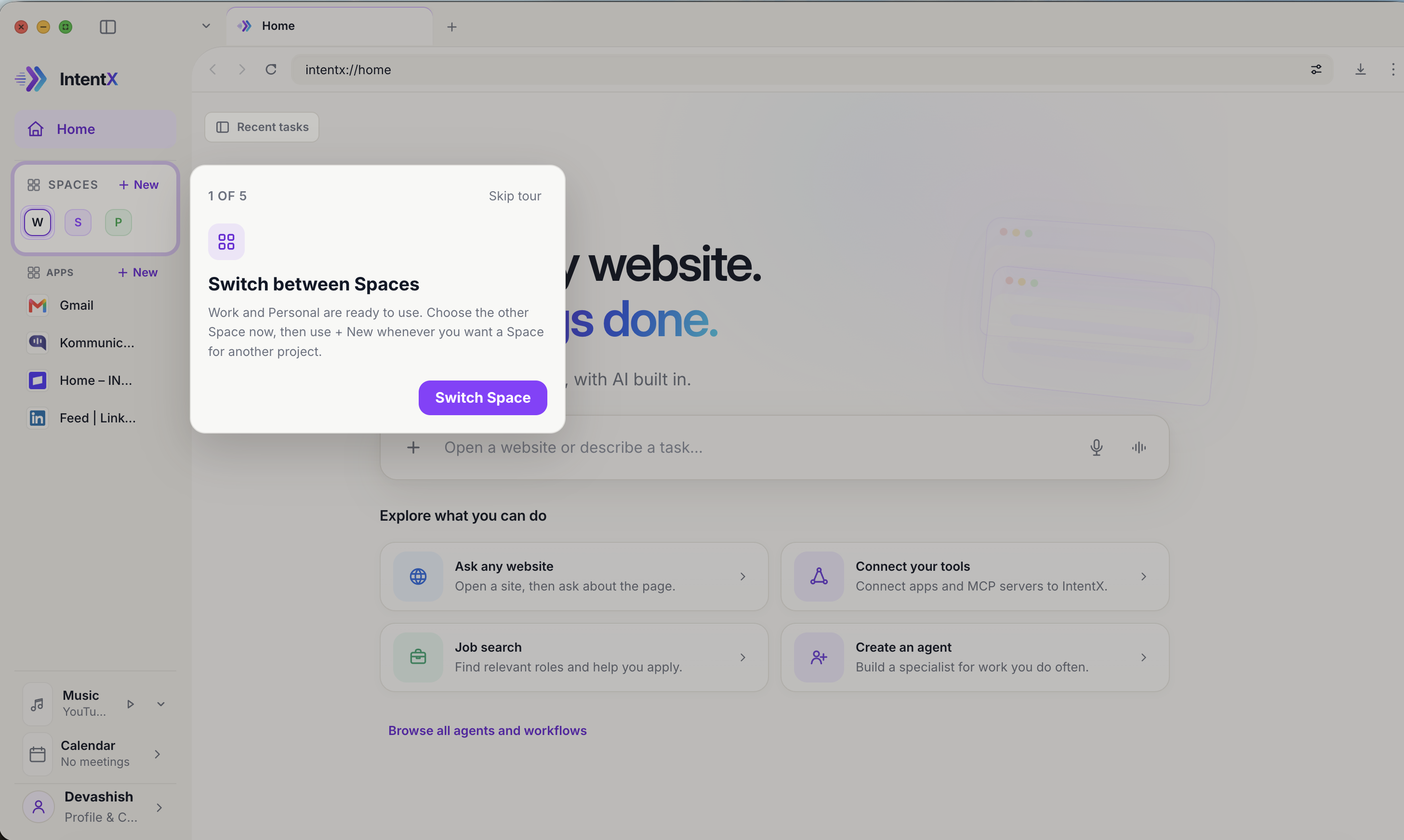
Here is a method you can use with tab groups, browser windows, or project workspaces. The IntentX steps below use Spaces. The cover image is an actual capture from our onboarding tour.
Start with one project you will return to
Choose something with a clear outcome, such as “Send the Acme proposal.” Avoid reorganizing every open tab before you do any work.
Gather the pages you need: the brief, draft, pricing reference, and task tracker. Save any unfinished forms before moving or closing them. If moving tabs is awkward in your browser, save their URLs and reopen them in the project window.
Leave unrelated email and personal browsing outside this group unless they are part of the task.
Separate working pages from reference material
A useful project contains three kinds of information:
- Working pages: the document or app you are editing now.
- References: pages you may consult but don’t need open all day.
- Next actions: things you or someone else needs to do.
Keep working pages open. Bookmark references in a clearly named folder or add them to the project document. Put next actions in a task list, with links where helpful.
This prevents the workspace from becoming another pile of pages you are reluctant to close.
Leave a stopping note
Before switching projects, add three lines to your notes:
Finished: first draft and pricing comparison.
Still unclear: whether support includes weekends.
Next: check the supplier’s terms, then send the draft for review.
This is an illustrative example. The point is to preserve the decision you were making, not to record every click.
A workspace remembers where your pages are. The note explains why they are there.
Set up the project in IntentX
- Use the Space controls in the sidebar to choose an existing Space.
- Use “+ New” if you want a separate Space for this project.
- Open the project’s pages there and keep temporary tabs with that work.
- Switch to another Space when you change tasks, then return to continue.
The Spaces setup guide shows where these controls live. Work and Personal give you a starting point. Add projects gradually. You do not need a Space for every small search.
Spaces organize browsing; they do not automatically combine all project pages into an AI context or provide separate website accounts. To ask about a page, open Ask and explain what you need. Learn how Ask works and how connections add access.
Decide what belongs in Apps and what stays a tab
IntentX keeps saved Apps and temporary tabs as separate parts of a Space. That distinction is useful when a project has both recurring tools and a changing set of references.
For a Course Space, you might keep the course portal as a saved App and open this week’s readings as temporary tabs. For Travel, the planning document might stay useful for weeks while individual hotel pages come and go. These are examples of how to arrange the work, not built-in templates.
A saved App can be used in more than one Space without creating another website session. Adding the same service to Work and Project does not give it two independent logins. Check the account shown on the website before doing account-specific work.
When you switch back to a Space, IntentX restores its last selected page if that page is still available. If you closed it, do not rely on its tab title as your record of the task. Keep the important link and stopping note in your project document.
Review the project when it ends
Keep the final document and any references you will need later. Move outstanding actions into your normal task system. Close pages that have served their purpose after checking for unsaved work.
If you are still reluctant to close everything, write down what would be hard to recover. That often reveals a missing bookmark, a decision you haven’t recorded, or an action you haven’t assigned.
For more on why tabs accumulate in the first place, read our guide to too many open tabs. To try the method in IntentX, choose the build for your computer.