

You have several vendor websites open, a report you haven’t finished reading, and a recommendation due by the end of the day. An AI browser might help you summarize the pages. The more useful question is whether it helps you finish the recommendation—and gives you enough evidence to stand behind it.
That’s where choosing between Comet alternatives gets interesting. Some options bring AI into a browser you already know. Others put more emphasis on browsing context or completing tasks. Sometimes, the best answer is a research tool that works alongside your current browser.
This guide compares seven alternatives based on documented features and the work they might suit. It is not a performance ranking from hands-on testing. Six entries are browsers; Perplexity is included as a research option that works inside your existing browser.
Why look for Comet alternatives?
Perplexity announced free worldwide availability for Comet in October 2025 (see the announcement). The better reasons to compare alternatives are closer to your daily work:
- Your existing browser setup—password manager, work profiles, extensions, and shortcuts—already saves time.
- Comparing public websites is different from preparing a recommendation that also depends on internal documents and customer feedback.
- Before sharing a page or connecting an account, you want to understand what information the tool uses and how to withdraw access.
- Summarizing a report, drafting a response, and submitting a form are separate capabilities.
- Features can depend on device, region, subscription, and workplace settings.
7 Comet alternatives at a glance
| Alternative | Type | Best fit |
|---|---|---|
| IntentX | AI-native browser | Turning live browser context into reviewed work |
| Microsoft Edge with Copilot | Browser | Teams already using Microsoft tools |
| Dia | Browser | Work spread across tabs and connected tools |
| Google Chrome with Gemini | Browser | AI assistance within an existing Chrome setup |
| Brave with Leo | Browser | Reading assistance and privacy controls |
| Opera Neon | Browser | Delegating browser tasks and creating outputs |
| Perplexity in your existing browser | Research assistant | Research without switching browsers |
1. IntentX
Best fit: Professionals who work across websites, SaaS apps, and connected tools
IntentX is our AI-native browser for turning browsing into action. Instead of moving information from a webpage into a separate chatbot and then into another app, you can ask about the live page, use context from your open work, and bring supported tools into the same browser workflow.
IntentX can detect available MCP tools and APIs, then route a task through the page, a connected tool, or browser control. That might mean comparing a product listing with other sellers, reading current payment data, or preparing an invoice for review. You set the intent and stay in control of consequential actions. Successful workflows can also become repeatable agents and automations for work such as job search, page-to-social drafting, and portfolio analysis. Explore IntentX.
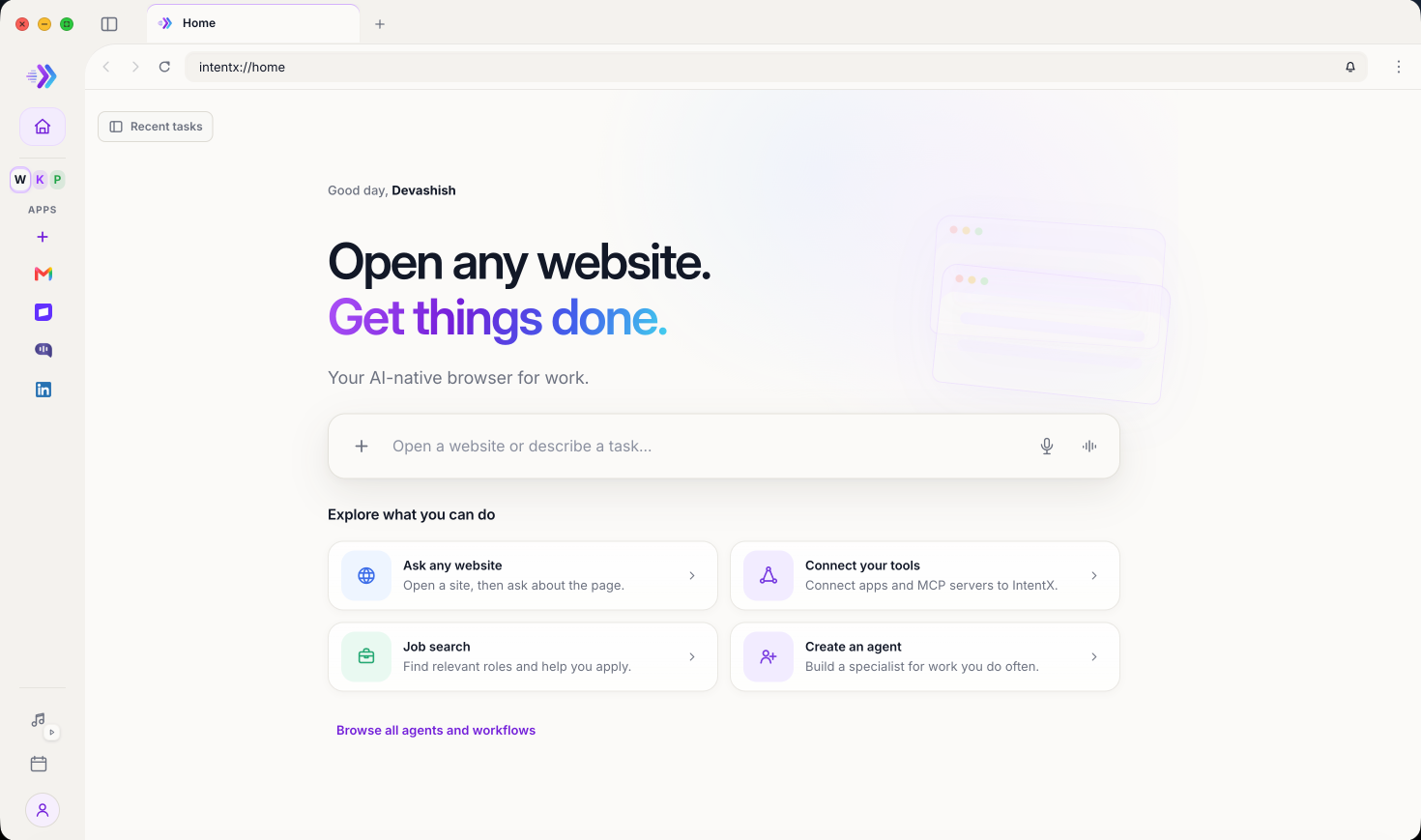
Choose IntentX when: You want the browser to carry live page context into connected, reviewable work—and make useful workflows easy to repeat.
Check before committing: Which websites, MCP tools, actions, and agents support the workflows you need, and where approval is required.
2. Microsoft Edge with Copilot
Best fit: Teams already using Microsoft tools
If Edge is already approved at work, it is a sensible place to start. Microsoft’s documentation describes Copilot in Edge for work, connections to Microsoft 365 information for eligible subscribers, and Browse with Copilot for supported web tasks. The work version of that browsing capability is documented as a limited preview for participating enterprise tenants (read Microsoft’s guide).
Try it on something familiar: compare three supplier proposals and draft a recommendation. Can you identify where each claim came from, and how much rewriting the result needs?

Choose Edge when: Your team already works in Microsoft’s environment and wants to explore AI assistance with minimal disruption.
Check before committing: Licensing, administrator settings, preview access, and support for the particular tasks you want to complete.
3. Dia
Best fit: People whose work is spread across tabs and connected tools
Dia describes using context from tabs and connected services such as Slack and Google workplace apps (explore Dia’s approach). A useful trial would test whether it can bring customer research, competitor messaging, and internal feedback together without overlooking constraints or mixing up sources.
Pricing and availability deserve a closer look: check Dia’s plans. Dia also explains that prompts and relevant page content may be sent to third-party AI providers for certain requests and proactive features (read its security explanation).
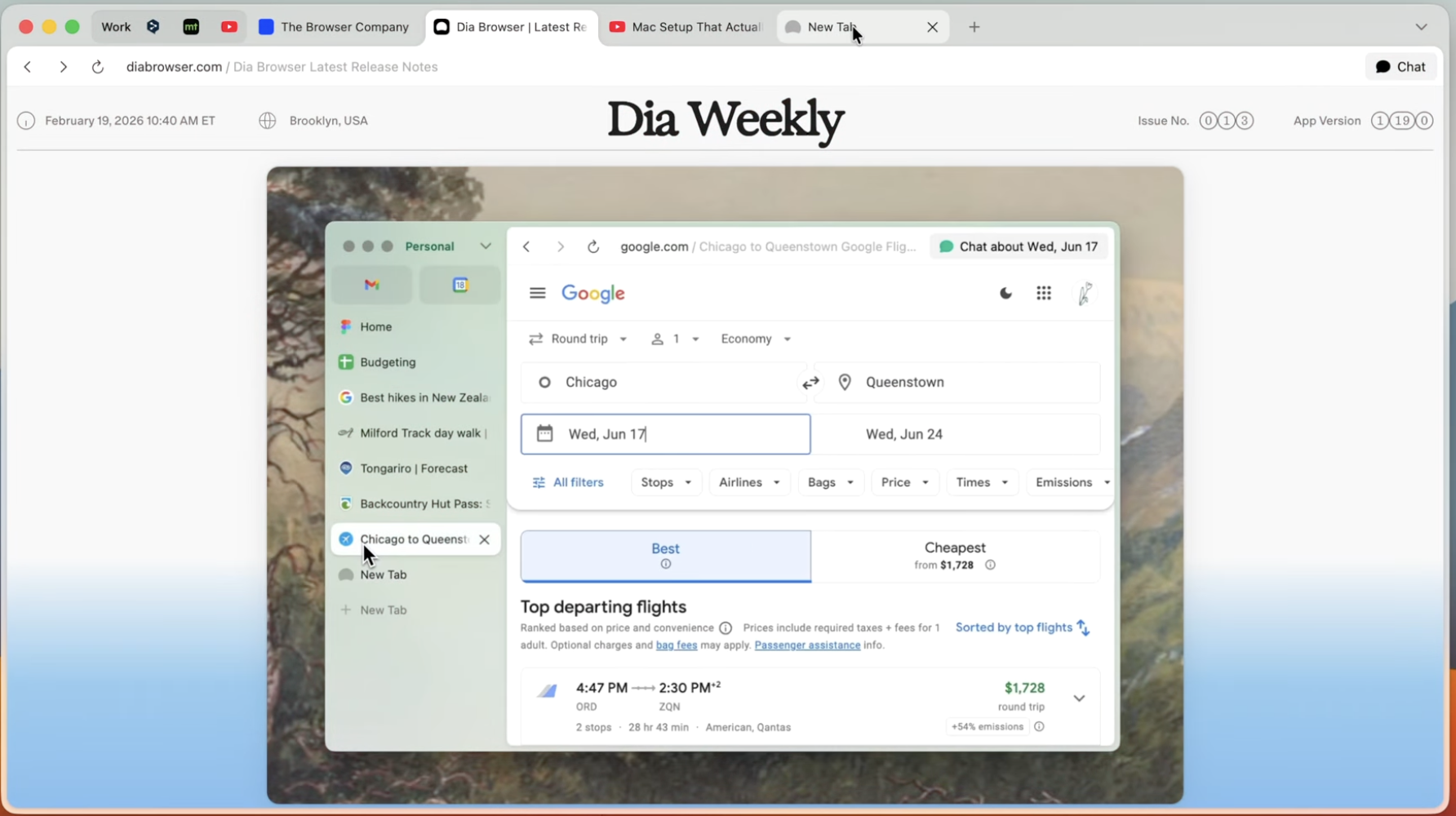
Choose Dia when: Rebuilding context for an assistant is a recurring frustration.
Check before committing: Pricing, usage allowances, supported connections, and controls over information used by AI features.
4. Google Chrome with Gemini
Best fit: Chrome users who want AI help without changing browsers
Google documents support for summarizing articles, explaining concepts, comparing information across pages, and sharing up to 10 open desktop tabs with Gemini (read the guide). Ask it to compare three software vendors, organize the differences, and flag anything the pages do not answer—then check its conclusions against the original material.
Google also describes connections to services such as Gmail and Calendar alongside auto browse for completing tasks (explore Chrome’s AI features). Availability depends on supported devices, regions, languages, and account eligibility; work or school accounts may require administrator enablement.
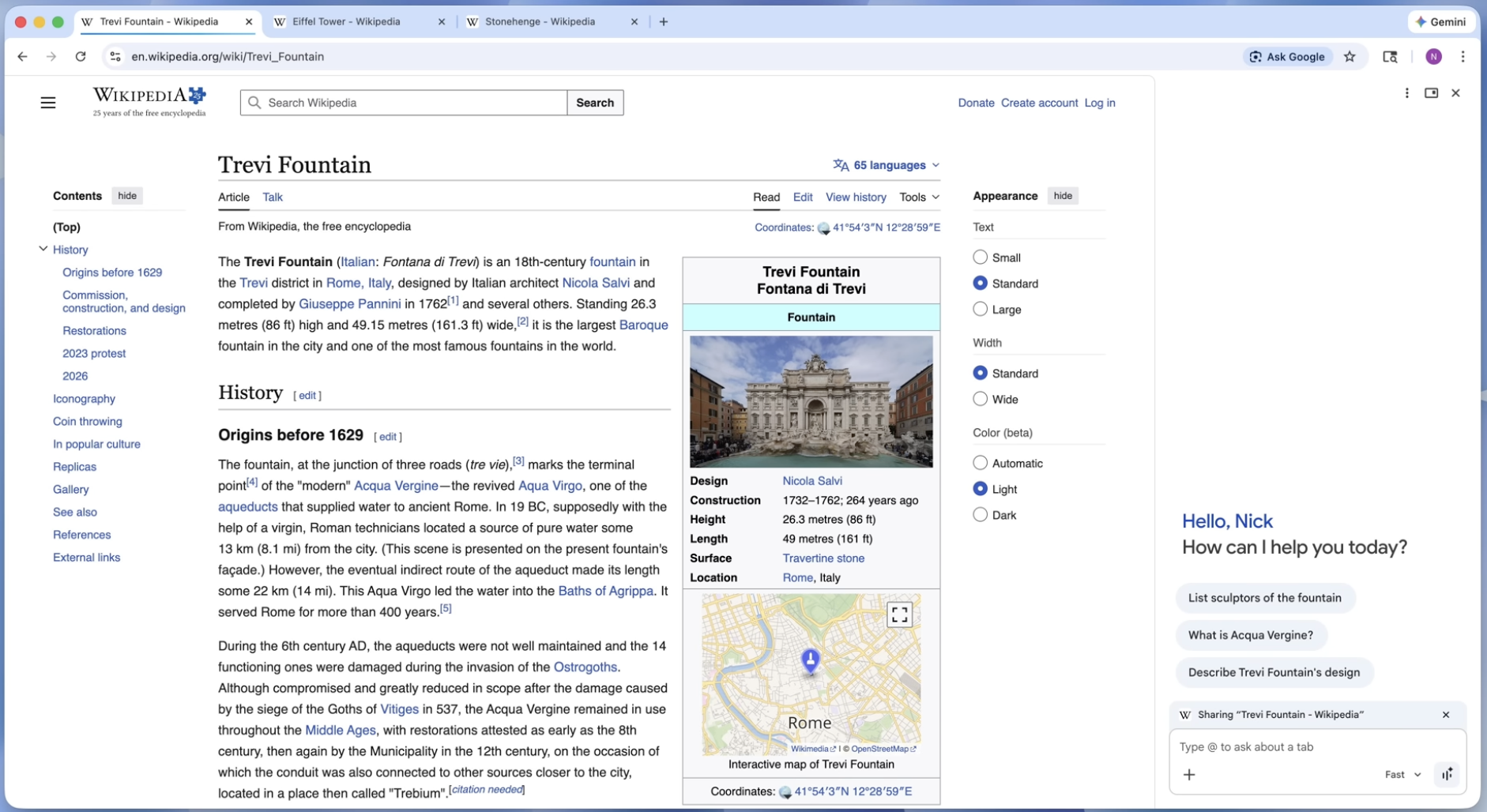
Choose Chrome when: Your current browser works well and you want help using the information open in front of you.
Check before committing: Feature availability, subscription requirements, tab-sharing settings, and result quality on your own tasks.
5. Brave with Leo
Best fit: People who want reading assistance with clearly documented privacy controls
Brave’s Leo assistant can summarize webpages, documents, and PDFs, answer questions, translate text, and help draft content. Brave lists support across desktop and mobile with free and premium access (see Leo’s capabilities).
Brave says Leo conversations are not used for model training and that saved conversation history is stored locally. Give it a long report and ask for findings that affect a specific decision; then check whether it preserved the exceptions and qualifications.
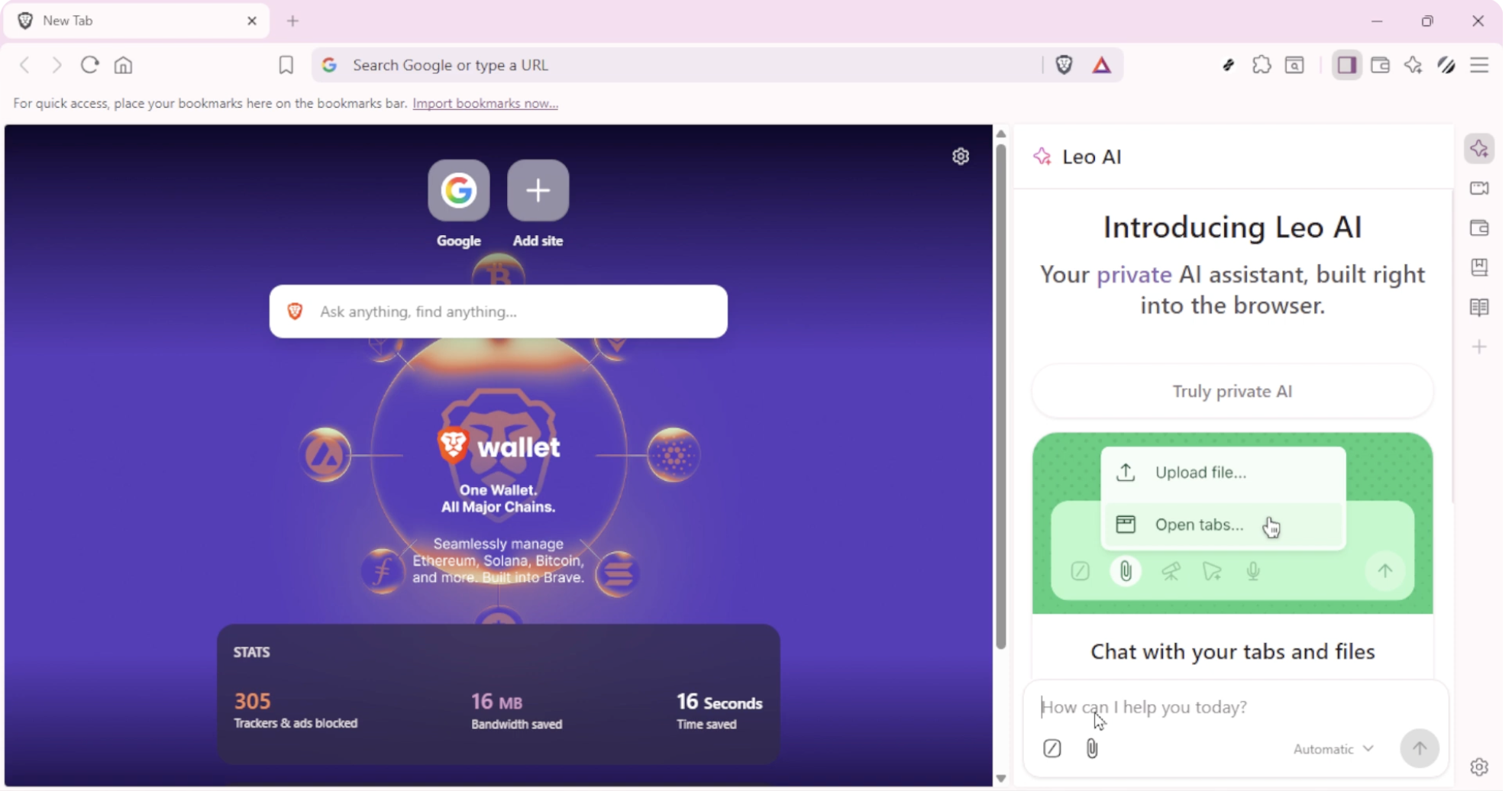
Choose Brave when: Your main needs are reading, understanding, and drafting, and you want to examine data practices closely.
Check before committing: Model availability, usage limits, document handling, and support for tasks beyond answering questions.
6. Opera Neon
Best fit: People who want to delegate browser tasks and create finished outputs
Opera describes Neon’s Chat, Do, and Make agents as supporting conversations, browser actions, and creation tasks such as building websites or editing documents (read Opera’s announcement). It also describes Neon as experimental, which matters when deciding how much responsibility to give it.
A good trial would follow a task from start to finish: research an event, organize the information, and prepare a briefing. Track where you have to correct the assistant or take over. Compare Neon’s subscription features.
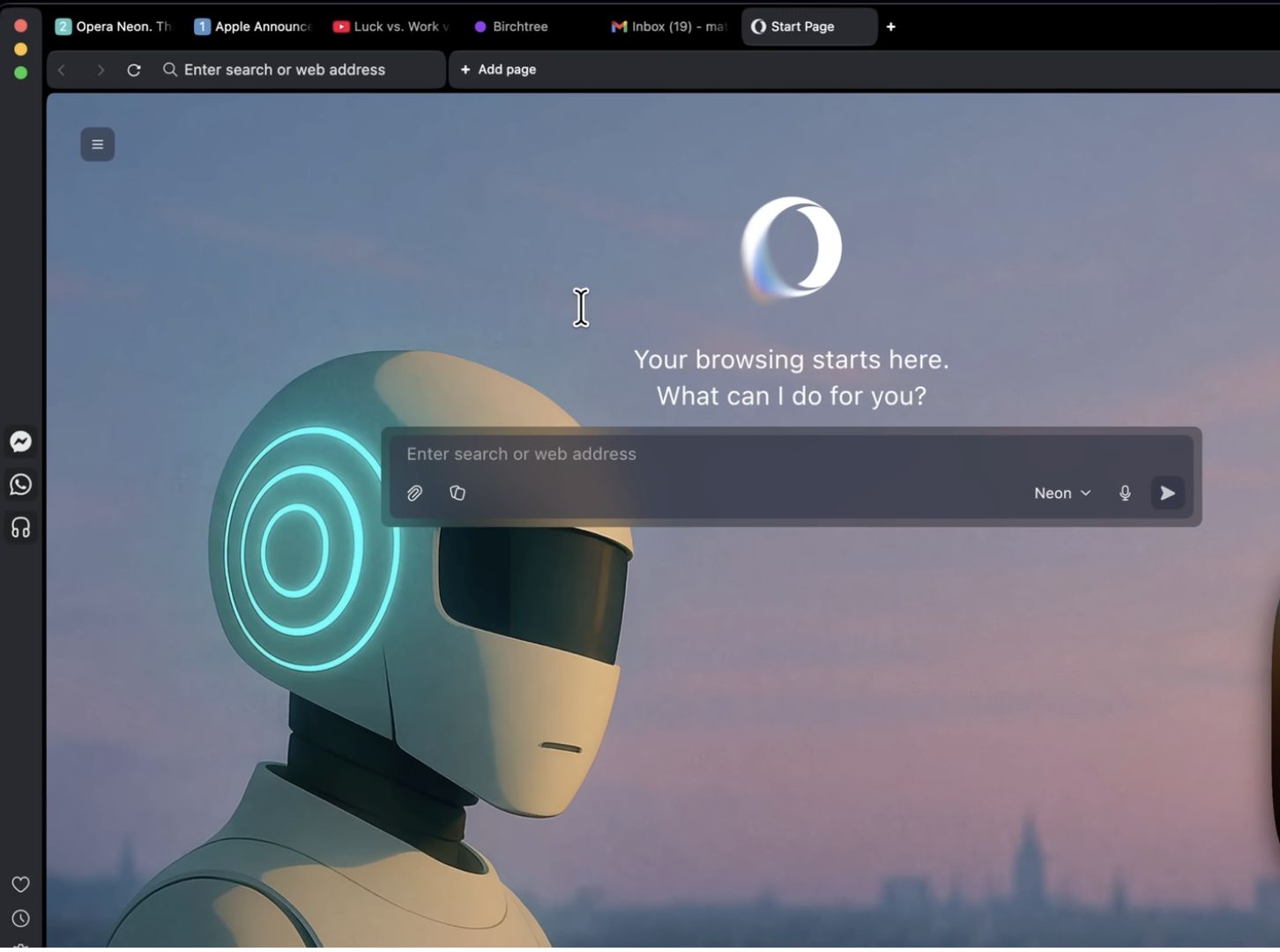
Choose Neon when: Browser actions and content creation are central to what you want help with.
Check before committing: Subscription terms, usage limits, website compatibility, and the ability to review or interrupt tasks.
7. Perplexity in your existing browser
Best fit: Researchers who do not need to switch browsers
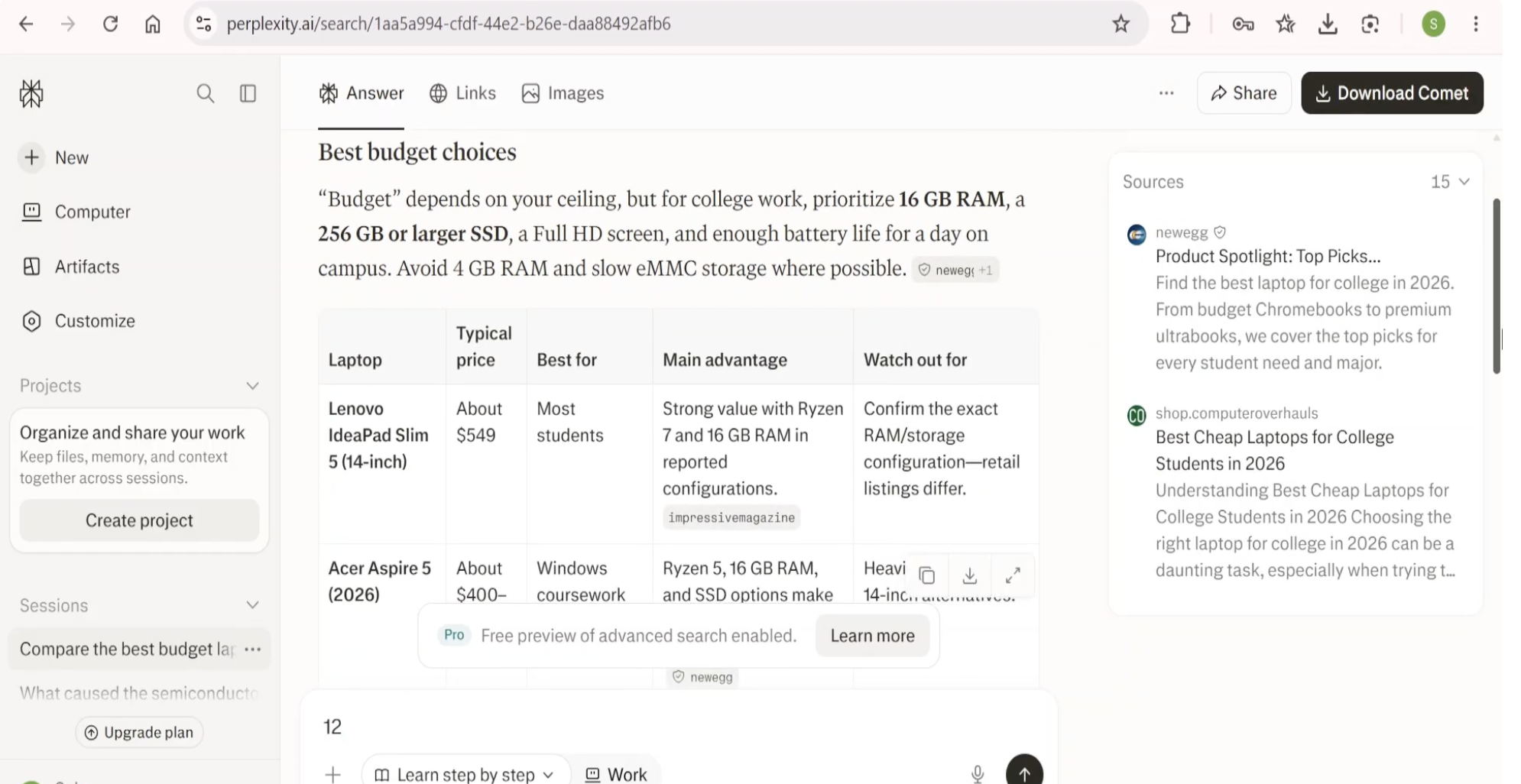
Perplexity’s Research mode searches for information, reads source material, and brings findings together in a report (read the documentation). This suits a market scan, an unfamiliar topic, or the first draft of a vendor shortlist while letting you keep your existing browser.
The work does not end when the report appears. Check sources behind important claims, add your own requirements, and decide what belongs in the final recommendation. Research allowances, source relevance, and export options vary by account.
How to compare Comet alternatives
Feature lists help build a shortlist. After that, give the tools something real to do.
Can you check the answer?
Ask each candidate to compare the same three vendors against a short list of requirements. Look for sources behind important claims, honest gaps in documentation, and a clear distinction between fact and recommendation.
Can it complete the task you have in mind?
Writing a form response, entering it into a website, and submitting it are three different steps. Check which steps the tool supports and where it asks you to review the work. Include corrections in your evaluation: if an assistant takes two minutes to produce something and fifteen minutes to fix it, the full task took seventeen minutes.
What context does it keep?
A tool may use your current conversation, shared tabs, past chats, or a connected workspace. Return to the same task a few days later and see how much context needs rebuilding—and whether you can inspect, change, or delete it.
Will your everyday tools still work?
Before switching browsers, test your password manager, accessibility tools, work profiles, and essential extensions. A useful AI feature will not compensate for breaking something you need throughout the day.
Can you see what happened?
For answers, look for sources. For actions, look for a clear record of what changed and where you can intervene. Make verification part of the workflow, especially when the result affects a real decision.
Try two options for one working week
Choose the two candidates that best match your needs and give them the same tasks:
- Research: Compare three products using current primary sources.
- Context: Draft something useful from several documents or tabs.
- Action: Complete a supported workflow with a clear stopping point.
- Follow-up: Return to earlier work and see how much context needs rebuilding.
Record completion time, factual corrections, and the points where you had to step in. At the end of the week, ask a straightforward question: which tool made this work easier to finish?
Which Comet alternative should you choose?
Start with the work you repeat most often. If it happens across public pages and tabs, compare IntentX, Edge, Dia, Chrome, Brave, and Neon. If you mainly need research reports without changing browsers, try Perplexity in your existing setup.
For Chrome users, Gemini provides a sensible first test. You can see whether built-in assistance meets your needs before deciding that a browser change is worth the effort.
The best Comet alternative is the one that helps you finish recurring work with fewer corrections and evidence you can check. IntentX offers another approach to keeping browsing and work together, with Spaces for grouping related tabs, assistance based on the current page or connected apps, and supported actions presented for approval. Try it on work you already understand and judge it by the result.