

Chat with a PDF in two ways: keep it open beside Ask in IntentX, or attach the file to a conversation. Download IntentX to try either workflow with free monthly AI credits; usage and file limits apply.
PDF open beside Ask
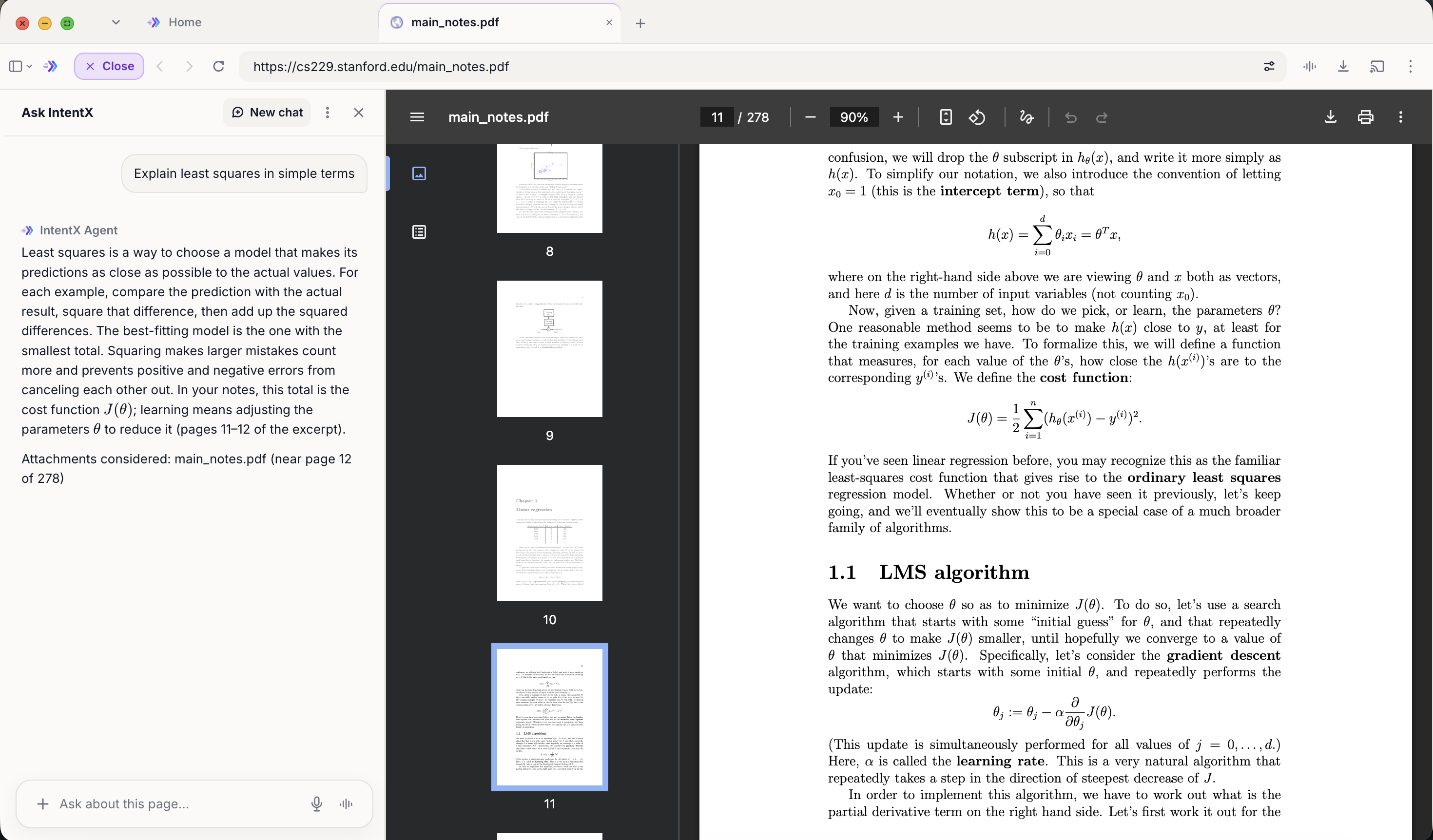
Real IntentX screenshot: Ask answers a question while the PDF stays open beside it.
PDF attached to a question
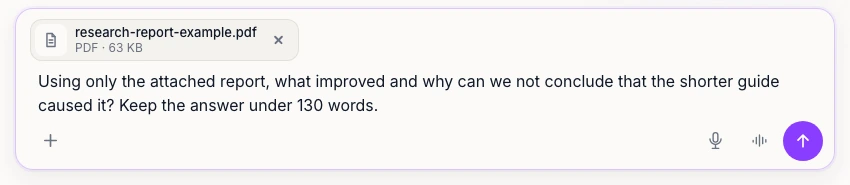
Actual IntentX composer with our fictional example report.
What does “chat with a PDF” mean?
It means giving an AI assistant a PDF and asking questions about its contents. You can request a summary, an explanation of a difficult paragraph, or a list of details to check.
A useful conversation becomes more specific as you read:
- “What is this report trying to establish?”
- “Which evidence supports the conclusion?”
- “What limitations does the author acknowledge?”
- “Explain the second limitation with a simple example.”
Search is still useful when you know the exact term. PDF chat helps when you know the question but not the words the document uses to answer it.
Attach the file or keep a supported PDF open in the current tab, and name the chapter or section you care about. Otherwise, the assistant may give a general answer about the topic instead of answering from your copy.
Option 1: Ask about a PDF already open in a browser tab
For a supported online PDF, you can keep the document open while you ask questions. The screenshot above shows an actual question about the Stanford CS229 course notes. To try the same workflow with a short sample, download IntentX and open our fictional reader-research report in an IntentX tab. Click Ask beside the address bar. The Ask panel opens on the left, and the PDF stays visible on the right.
The report describes twelve volunteers using two onboarding guides in successive weeks. It is a short example made for this guide, not a real study or evidence about IntentX performance.
In the Ask box, try:
Using the PDF open in this tab, what changed from week one to week two? What does the report say about whether the shorter guide caused that change?
You can read Results and Limitations on the right as you check the answer on the left. This is useful when you want to keep the source in view instead of switching between a PDF window and a chat tool.
This works for supported PDFs that IntentX can read from the open tab, including some PDF previews in Gmail. Some sites block access to their preview or serve a format the browser cannot read this way. If Ask says it cannot read the document, download a copy you are allowed to use and follow Option 2 below. See the 1.3.4 release notes for the open-document feature.
Option 2: Attach a PDF and ask a question
1. Choose a readable PDF
Start with a PDF whose text you can select and search. Reports exported from a document editor are a good first test. A scan that only contains pictures of pages needs text recognition before this workflow can read it.
For this walkthrough, download the same fictional reader-research report. Eight of the twelve volunteers complete the task in the first week; ten complete it in the second. The interesting question is whether that difference proves the second guide was better.
2. Add the PDF in IntentX
Download IntentX, complete setup, and open Home. Click the + beside the message box and choose the PDF. You will see its file name above the box. Wait for loading to finish before sending your question.
3. Ask a question the document can answer
Try this prompt:
Using only the attached report, what improved and why can we not conclude that the shorter guide caused it? Keep the answer under 130 words.
The question asks what changed and whether the report proves why. That gives you a more useful answer than “summarize this.”
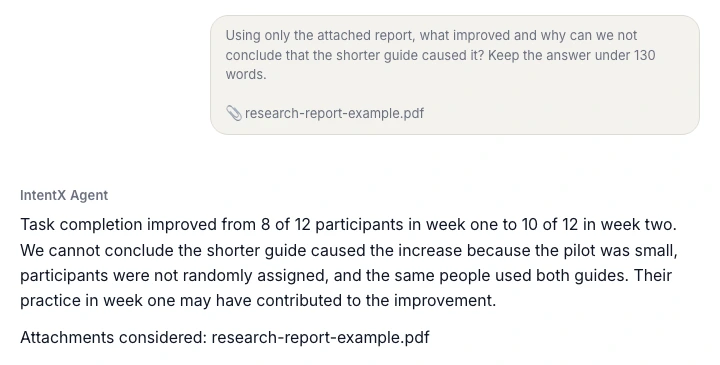
Actual IntentX response to the example report. Results vary with the document and question.
The response identifies the improvement and the reasons it does not establish causation. Those details are present in the original file. That makes the answer something you can check, rather than simply something that sounds plausible.
4. Follow up until you understand the point
Stay in the conversation and narrow the question. Useful follow-ups for this report include:
Explain the practice effect in one sentence.
What would a stronger follow-up study need to change? Separate the report’s recommendation from your suggestions.
Give me three questions to ask the author before relying on this result.
These are questions you can try next. The screenshot shows only the first answer.
5. Verify the part you will use
Before copying a claim into a presentation or decision, find it in the PDF. Check the surrounding paragraph, units, dates, and any footnotes. If the assistant gives a location or quotation, verify that too.
In the sample report, check Results, Limitations, and Recommendation. The answer names the PDF, but it does not link to a particular page. Open the PDF to confirm the details.
A good instruction is:
Identify the section that supports your answer. Quote a short relevant phrase. If you cannot locate support in the document, say so.
How to chat with an e-book or a book PDF
If your e-book is a PDF with selectable text, add it the same way. Start with one chapter and one question. A long book may exceed the app’s file or text limits.
For a quick trial, download Reading with Questions, our original mini e-book. Its three short chapters explain how to set a reading question, keep evidence beside an idea, and test understanding.
Attach it in a new conversation and ask:
Using only this mini e-book, explain Chapter 2 in plain English. Give one practical example, label it as your example, and quote a short supporting phrase. Keep the answer under 140 words.
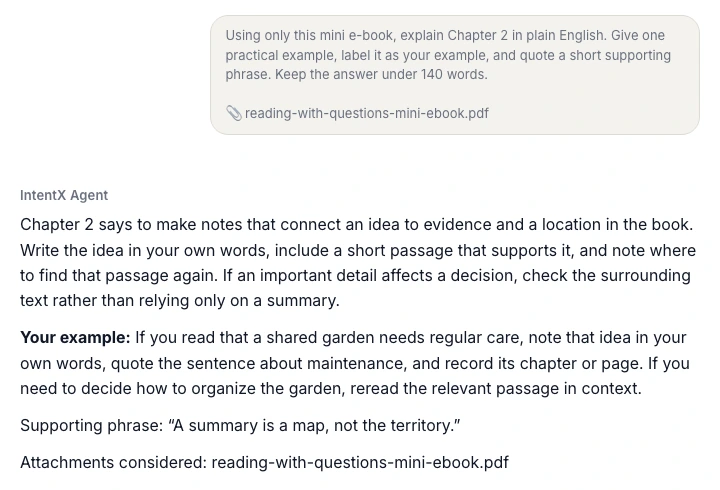
Actual response to the original mini e-book in PDF format. This demonstrates PDF e-book chat, not native EPUB reading.
The answer explains the chapter, quotes the book, and labels its own example. That helps you see which words came from the book.
A better way to study a chapter
Begin with your own question, then ask the assistant to help you answer it. For example:
I am reading Chapter 4 to understand how the author distinguishes correlation from causation. Explain the distinction using this chapter, then ask me one question to check my understanding.
For revision, try:
Create five practice questions from this chapter. Put the answers in a separate section so I can attempt the questions first.
For a reading group:
Suggest four discussion questions about this chapter. Include one about an assumption the author makes and one about a passage readers might interpret differently.
To reduce the chance of spoilers, provide only chapters you have read. Asking for “no spoilers” may not be enough if the assistant has the whole book.
Does IntentX support EPUB or Kindle books?
IntentX can chat with e-books saved as readable PDFs. It does not currently accept EPUB or Kindle book files as chat attachments. Renaming an EPUB file to .pdf will not convert it.
If your publisher or reading app offers a PDF or text version you are allowed to use, try that. You can also add a short passage you are allowed to share. A protected Kindle book cannot be read directly through this workflow.
If direct EPUB import is essential, compare tools that explicitly support it. For example, Google’s source documentation lists EPUB among Gemini Notebook’s supported source types, and ChatDOC lists EPUB in its upload formats.
Who is PDF chat useful for?
Students who need explanations, not another pile of notes
Use a textbook chapter or lecture handout to identify what you do not understand. Ask for a simpler explanation, attempt a practice question, and return to the chapter to correct your answer.
Explain the difference between these two concepts using only the attached chapter. Then give me a question that requires applying the difference.
Then explain the idea in your own words. If you cannot, ask a narrower question and return to the chapter.
Researchers evaluating a paper
Ask about the research question, method, sample, findings, and limitations separately. This makes it easier to distinguish what the authors measured from what they speculate about.
Extract the research question, method, sample size, main finding, and stated limitations. Mark anything not reported as “not stated.”
Check tables, equations, and references in the original. Text extraction can lose structure that matters to the result.
Professionals reading reports and manuals
Use document chat to prepare for a meeting, understand a process, or locate a requirement. Ask for an output that matches the work ahead.
Turn the setup instructions into a checklist. Preserve warnings and prerequisites. Identify any step that depends on information missing from the document.
Or:
List the decisions this report asks us to make, the evidence offered for each, and the questions left unanswered.
Readers working through nonfiction
Use a PDF e-book as a conversation partner while you read. Ask how two ideas connect or where the author’s argument changes direction.
Compare the main idea in Chapter 2 with Chapter 3. Where do they reinforce each other, and where do they create tension? Separate explicit statements from your interpretation.
Teams preparing a briefing
A report your team is allowed to use can become the basis of a short briefing. Keep the PDF available so others can check the claims.
Draft a 150-word briefing from this report. Include the central finding, one limitation, and two questions for our discussion. Do not introduce outside facts.
If your work also involves web pages, see our guide to researching across websites with AI. Tell the assistant when you want an answer from the PDF alone.
Is IntentX a useful ChatPDF alternative?
If you are comparing ChatPDF alternatives or looking for sites like ChatPDF, decide where you want to read. A standalone upload site is convenient for a quick file question. IntentX lets you ask about a readable PDF within the browser where you opened it, or attach a copy from your computer. You can try that with the included free AI allowance and decide later whether you need another tool. You may want a specialist for scanned pages, native EPUB files, or a large shared document library.
Here are some other options and the jobs they advertise. These descriptions come from the vendors’ sites, checked on November 24, 2026; they are not a test of which tool gives the best answers.
- For a quick PDF question: ChatPDF and PDF.ai focus on uploading a file and asking questions. ChatPDF advertises citations and multi-file chat. Both have free options with limits.
- For several documents or a team library: AskYourPDF and Humata offer broader document workflows, with limits and paid plans that vary by use.
- For research papers: SciSpace offers section summaries and citation-linked answers. Adobe Acrobat AI Assistant answers questions within Acrobat and shows source citations.
- For EPUB books or a research notebook: Gemini Notebook / NotebookLM lists PDF and EPUB among supported sources. ChatDOC advertises EPUB and scanned-file support.
Several of these tools also have free tiers. If IntentX handles your PDF questions within its free allowance, you can keep reading and asking in one browser without paying for a dedicated PDF-chat plan. Compare the current limits before choosing a tool for heavy use.
For a broader workflow comparison, read AI browser vs ChatGPT.
Common PDF chat problems and what to do
“The PDF opens, but the assistant cannot read it.”
A visible page may be an image, a protected file, or an online preview the assistant cannot access. Try selecting and searching the text. For an inaccessible preview, attach a supported copy directly. For a scan, obtain a searchable version using OCR before attaching it; scanned PDF text extraction is not supported by the current IntentX workflow.
“The book is too large.”
Follow the limits shown in the app. File size and extracted-text length are separate constraints, so compressing images may not solve a text-length error. Use a permitted chapter excerpt with enough context to answer your question. Keep its chapter title and source details intact.
“The answer sounds right but I cannot find it.”
Ask which passage supports it. If you still cannot verify it, leave the claim out. A confident tone does not establish that the answer came from the document.
“A table or equation was misunderstood.”
Read the original layout. Ask a narrower question and include the relevant labels, units, or surrounding explanation. Do not treat a text summary as a substitute for checking a structured table or formula.
“Can I use confidential documents?”
Check your organization’s requirements and the IntentX privacy notice before submitting sensitive material. Being built into a browser does not mean that AI processing is entirely local or offline. For a first trial, use the non-sensitive sample documents in this guide.
Frequently asked questions
Can I chat with a PDF for free?
Yes. IntentX is free to download, and accounts include free monthly AI credits. You can try the PDF workflow shown here without buying a separate PDF-chat subscription. Some tasks use credits, so check your available balance and task prices in Settings → Billing. File and text limits also apply.
Is IntentX a free alternative to ChatPDF?
You can try PDF chat in IntentX with its free monthly AI credits, without buying a separate PDF-chat subscription. Some tasks consume credits, and file limits apply. A dedicated tool may be useful if you need native EPUB support, OCR for scans, a large research library, or page-linked citations.
Can I ask questions about an entire book?
You can ask about the readable text supplied to the assistant, within the applicable limits. A large book may need to be divided into permitted excerpts. State which chapter or file the question concerns, and do not assume the assistant has read material you have not supplied.
Can PDF chat replace reading the original?
It can help you decide where to read and clarify what you find. Verify the passages behind important claims. For technical material, that includes figures, tables, qualifications, and footnotes.
Does IntentX require an extension for this workflow?
No separate PDF-chat browser extension is needed for either workflow in this guide. IntentX is the browser; document questions use its built-in AI conversation.
Try one PDF before choosing another subscription
Pick a readable PDF you already need to understand. Ask one specific question, follow up on the answer, then ask where the evidence appears. Check it against the original.
You can start with IntentX’s free monthly AI allowance and see whether that covers your reading needs.
Download IntentX and try the example report or a readable PDF of your own.