
Some users thought IntentX was something like ChatGPT. Others saw it as a tool for workflow automation. Many were missing the idea we most needed to communicate: IntentX is an AI browser they can use in place of Chrome for everyday browsing.
That confusion shaped our redesign. If someone opens IntentX expecting only a chat interface or an automation tool, they may never try opening their usual websites, bringing over their bookmarks, or making it their default browser. We needed the product to make that everyday browsing role clear from the beginning.
We also heard that people were missing features already available to them. Music, Calendar, and Spaces were difficult to discover. Users weren’t readily seeing that they could organize their tabs into Spaces or keep everyday tools close in the sidebar.
We took that feedback into a broader product redesign, reworking how IntentX presents itself and how people find their way around. We then created an onboarding flow to introduce the browser and guide users to those features in context. The interface and the introduction needed to work together.
Once that starting point is clear, the next questions are practical. Where are my bookmarks? Do I need an account? What does the AI help me do? The experience answers those questions through a simple introduction, optional setup, and a short tour inside the browser itself.
The goal is to help people feel ready to browse, with enough guidance to discover what else is possible. Here’s a walkthrough of all seven screens and the thinking behind them. The images are actual captures of the onboarding experience.
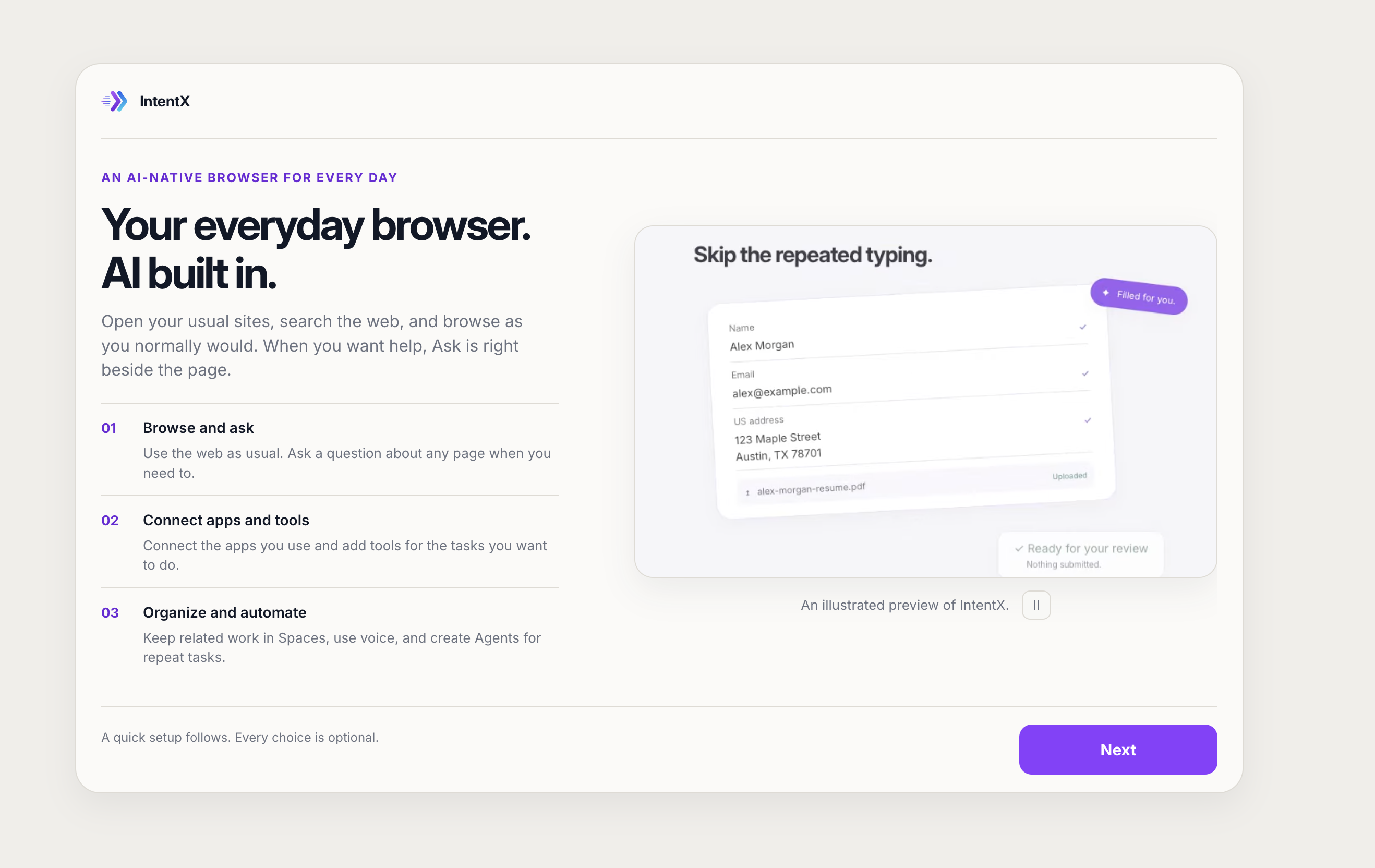
Screen 1: “Your everyday browser. AI built in.” The welcome screen shown above establishes a familiar starting point: open your usual sites, search the web, and browse as you normally would. When you need help, Ask is beside the page.
That order responds directly to the confusion we heard. The headline puts “browser” first and places AI within that familiar experience. Opening websites and browsing normally give people a concrete starting point for understanding how IntentX can fit into their routine.
Three short sections outline what users can explore: browsing and asking questions, connecting apps and tools, and organizing or automating work. This gives the product a clear shape without asking anyone to learn every feature immediately.
The illustrated preview makes one use case concrete: reducing repeated typing. Its “Ready for your review” and “Nothing submitted” messages also communicate a boundary in the example. Preparing something and submitting it are separate moments, with room for the user to review. The caption explicitly identifies the preview as an illustration, helping set expectations about what is being shown.
Finally, the screen explains what comes next: “A quick setup follows. Every choice is optional.” Before asking people to make decisions, we tell them how much commitment those decisions require.
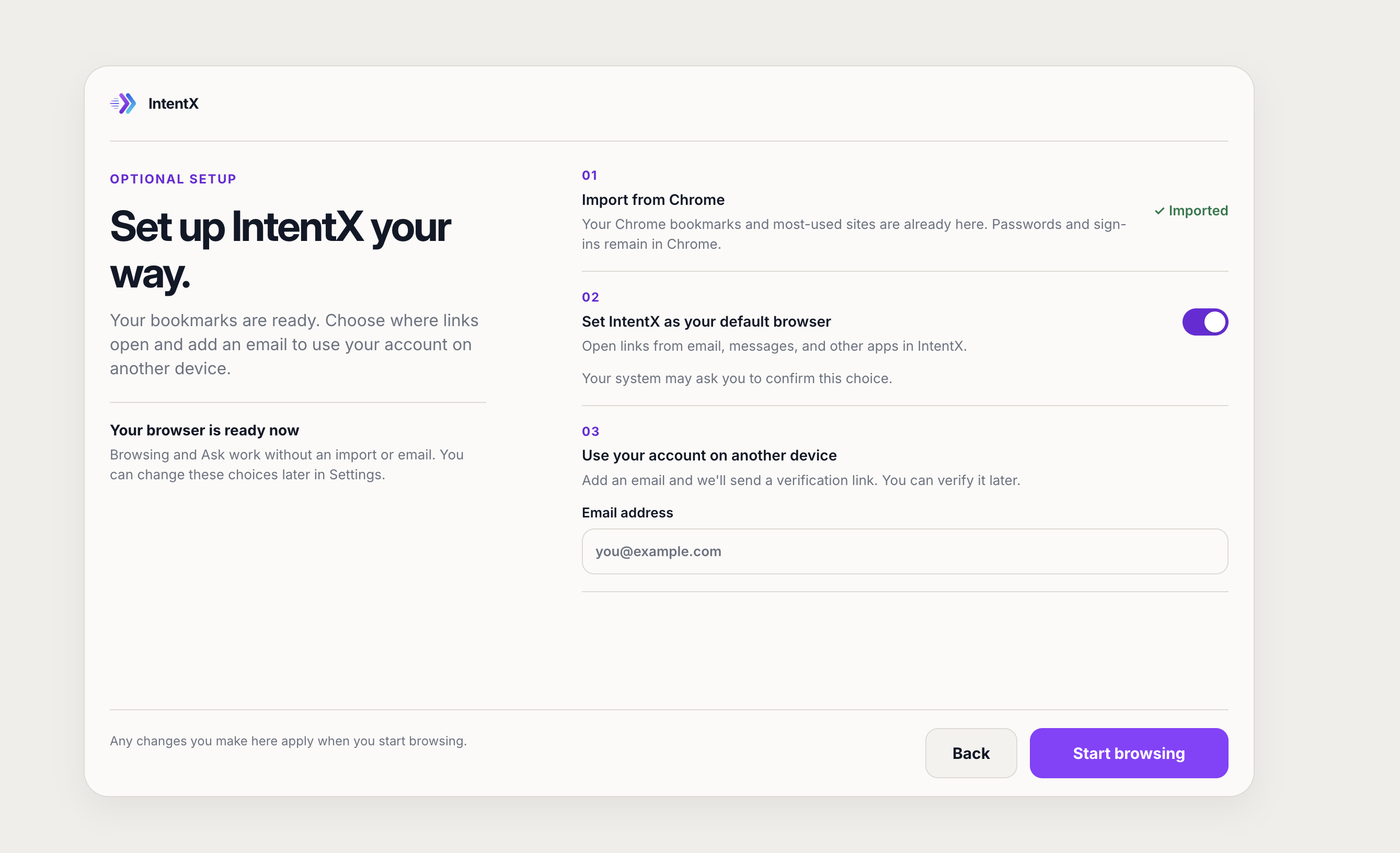
Screen 2: “Set up IntentX your way.” The second screen brings together three practical choices: importing from Chrome, choosing a default browser, and adding an email to use the account on another device.
Each option explains its purpose and boundaries. In the state shown, Chrome bookmarks and most-used sites are already imported, while passwords and sign-ins remain in Chrome. That distinction helps users understand what to expect when they open a familiar website.
The default-browser option explains the everyday consequence: links from email, messages, and other apps will open in IntentX. It also prepares users for a possible system confirmation, so an operating-system prompt feels like an expected part of their choice.
The email field is tied to a specific benefit: using the account on another device. The copy explains that a verification link will be sent and that verification can happen later.
Alongside these choices, the screen makes the essential point explicit: browsing and Ask work without an import or email, and these settings can be changed later. Grouping the decisions together lets people review the setup before continuing. The main button says “Start browsing,” keeping the destination clear.
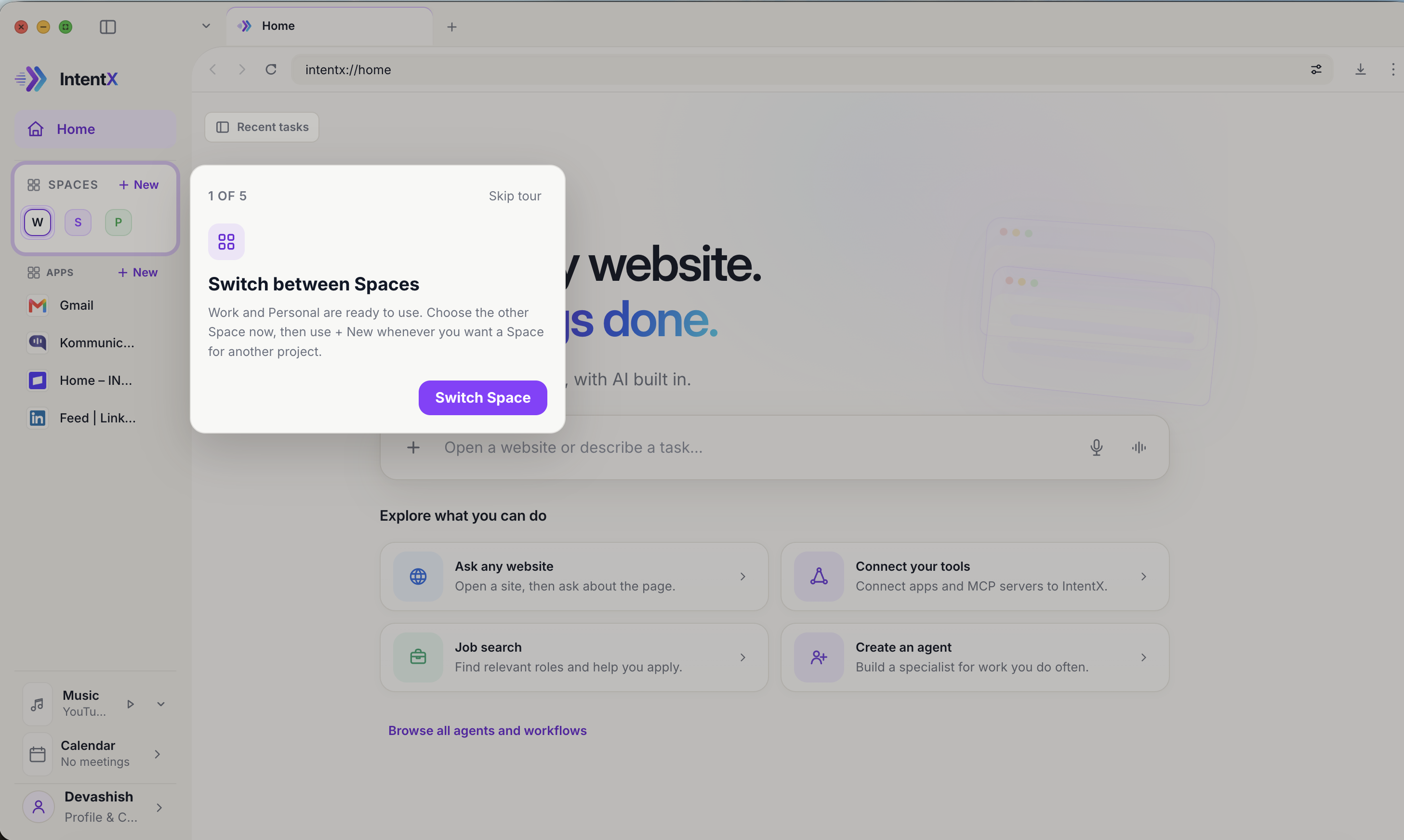
Screen 3: “Switch between Spaces.” Once users reach the browser, the five-step tour begins with Spaces. The first tooltip highlights the actual controls in the sidebar. It explains that Work and Personal are ready to use, invites the user to switch, and points to “+ New” for another project.
People had been missing the ability to organize their tabs into Spaces, so the tour introduces it through a small action. Switching a Space helps someone connect the concept to its location and behavior in the interface. Starting with ready-made Spaces also gives people something to try before asking them to create their own structure.
The surrounding screen is dimmed, while the relevant controls have a purple outline. That treatment connects the explanation to the place where the action happens. “1 of 5” makes the tour’s length visible, and “Skip tour” gives users a way to continue on their own.
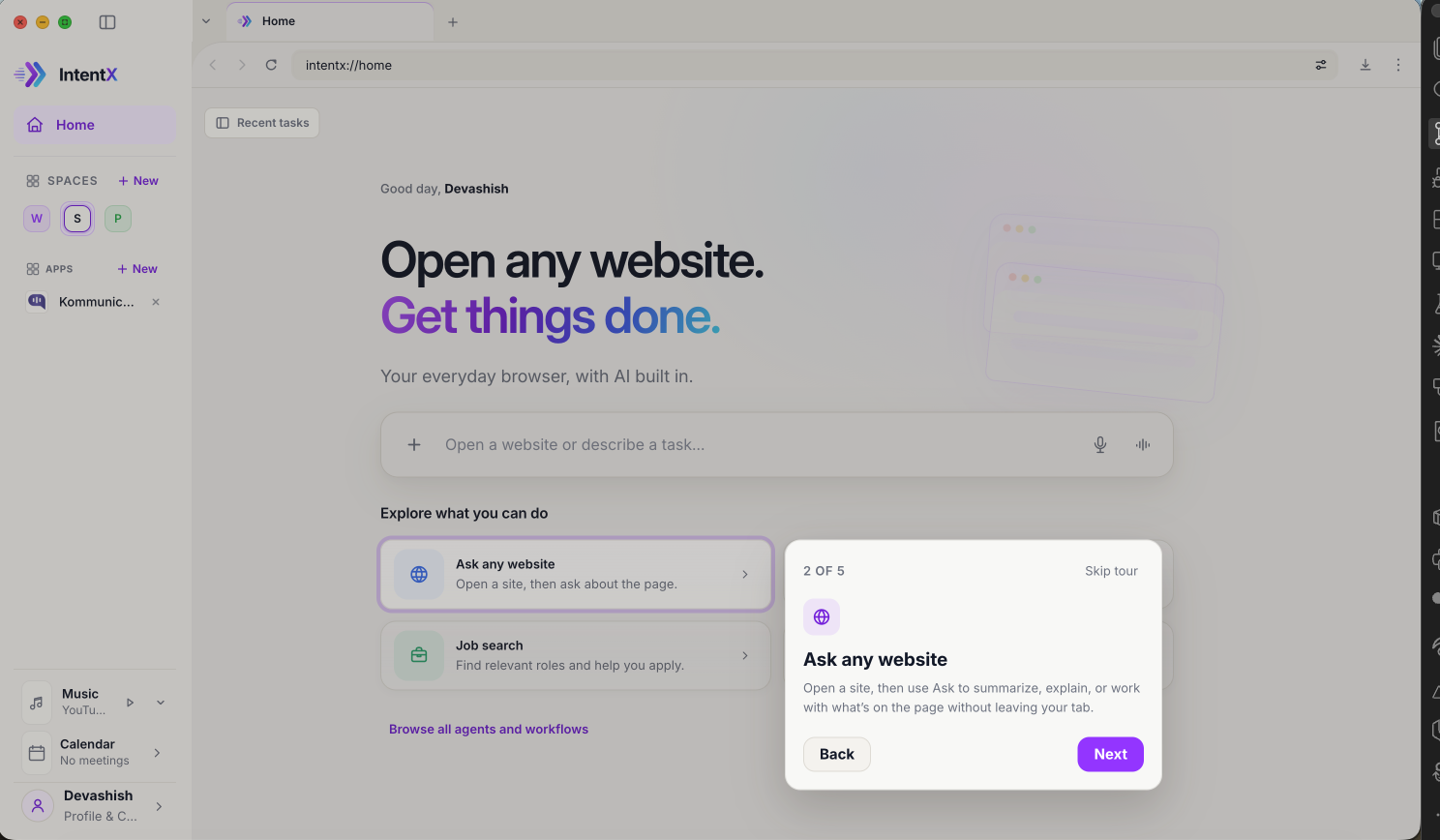
Screen 4: “Ask any website.” The next step introduces the central AI interaction: open a site, then use Ask to summarize, explain, or work with what is on the page.
The wording starts with an action users already know and adds a useful next step. Examples such as summarizing and explaining give people a starting point without requiring them to invent a prompt from scratch.
“Without leaving your tab” explains the practical benefit. The page and the help stay together, so users can understand Ask in the context of what they are already reading or doing. Highlighting the matching home-screen card creates a recognizable place to return after the walkthrough ends.
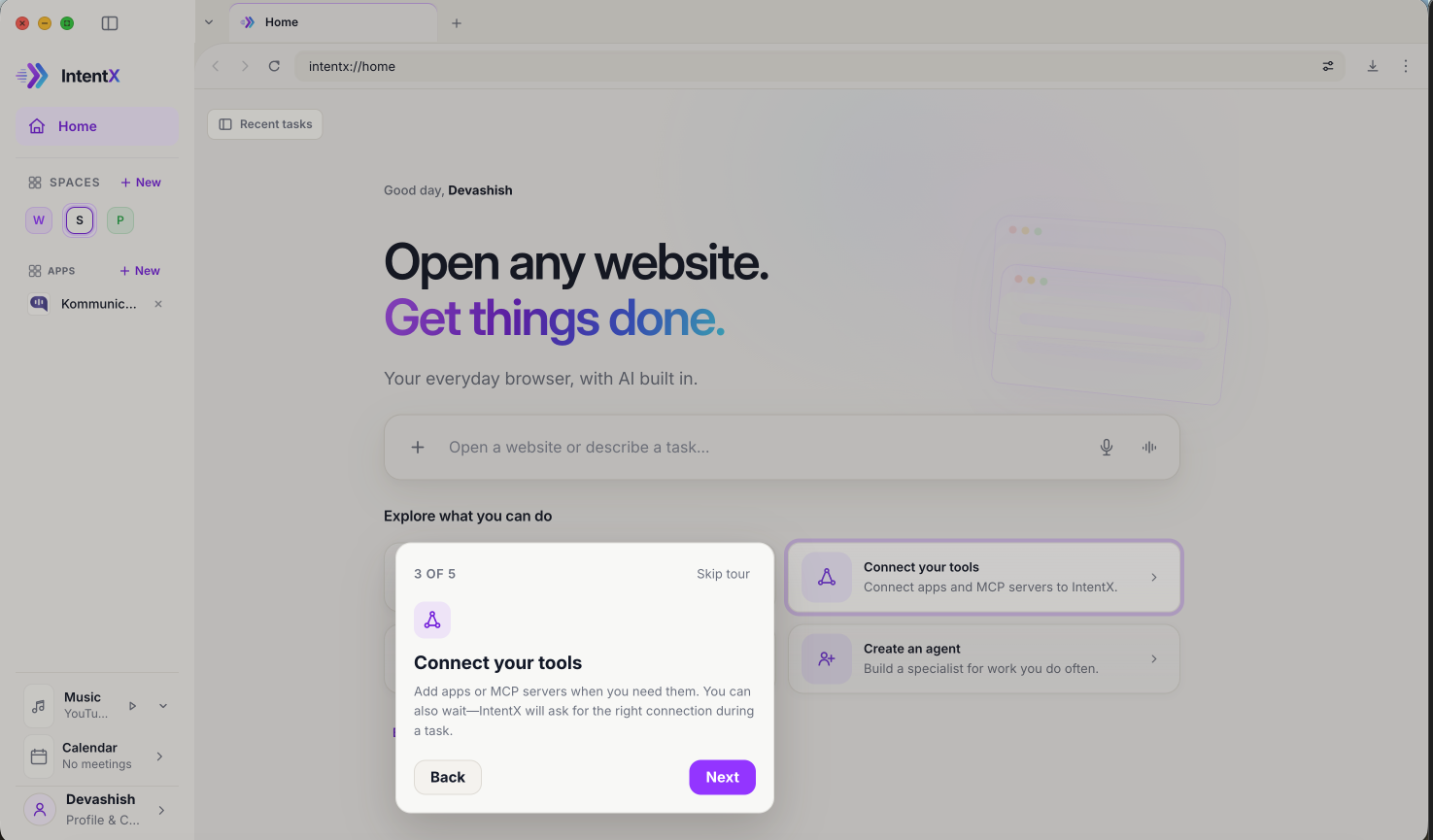
Screen 5: “Connect your tools.” The third tour step introduces apps and MCP servers, which extend what IntentX can work with. The key sentence is about timing: “Add apps or MCP servers when you need them.” The screen also explains that IntentX can ask for the right connection during a task.
Connections can involve choosing a service, signing in, and granting access. Those decisions are easier to understand when someone has a task in mind. Introducing the option here makes it discoverable while allowing setup to happen when its purpose is clear.
Knowing that a feature exists and being ready to configure it are different stages. Onboarding can help with the first while leaving the second for a useful moment.
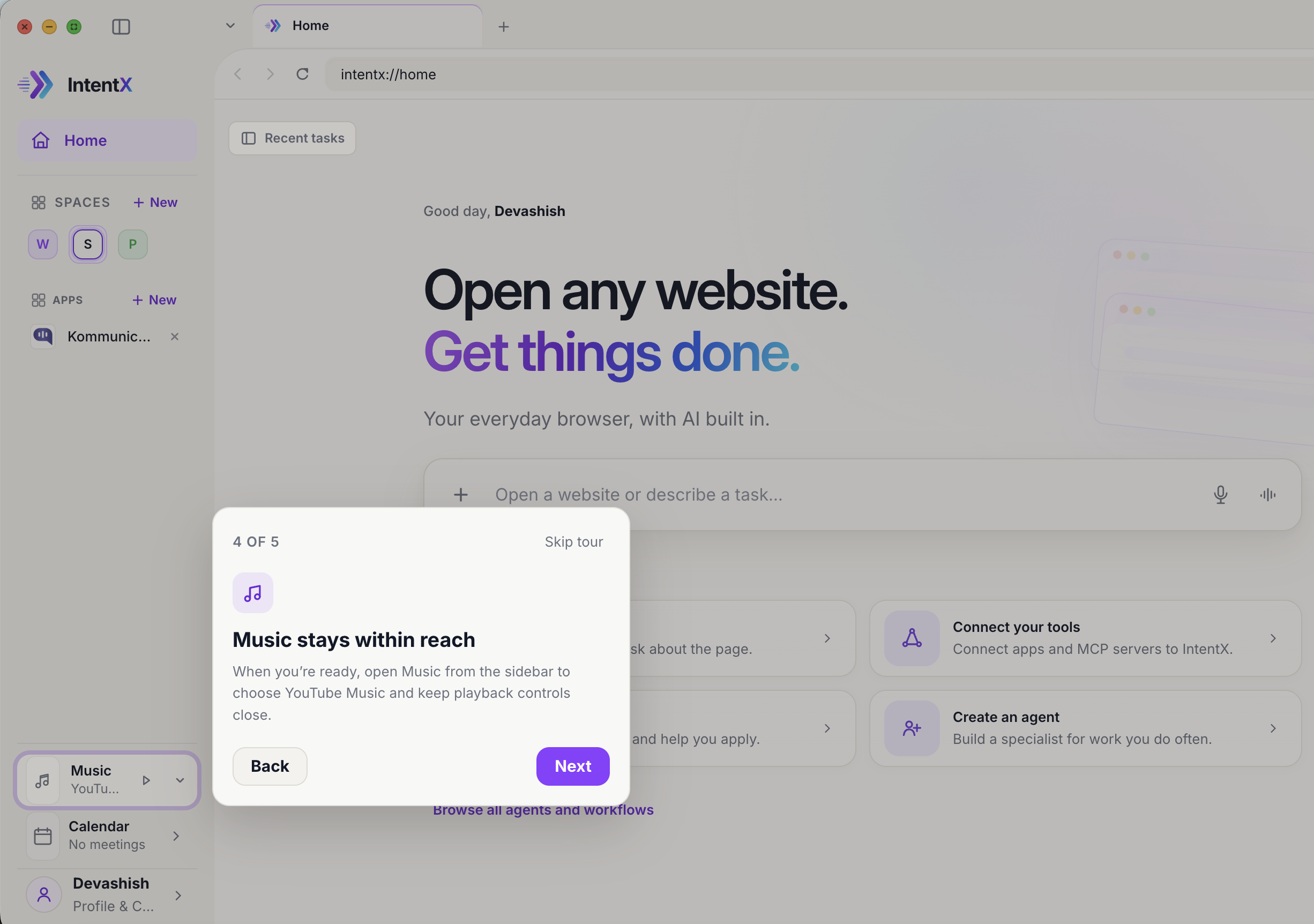
Screen 6: “Music stays within reach.” The fourth tour step highlights Music near the bottom of the sidebar. It explains where to choose YouTube Music and how to keep playback controls close.
A browser is part of a daily routine, and music often belongs to that routine. Users had been overlooking Music, so this step explicitly points out where it lives and what it offers. It also shows how IntentX accommodates an ordinary activity alongside browsing and AI tasks.
The design introduces the location and benefit without asking users to start playback immediately. “When you’re ready” leaves the timing with them. The sidebar placement gives the feature a consistent home that users can find again.
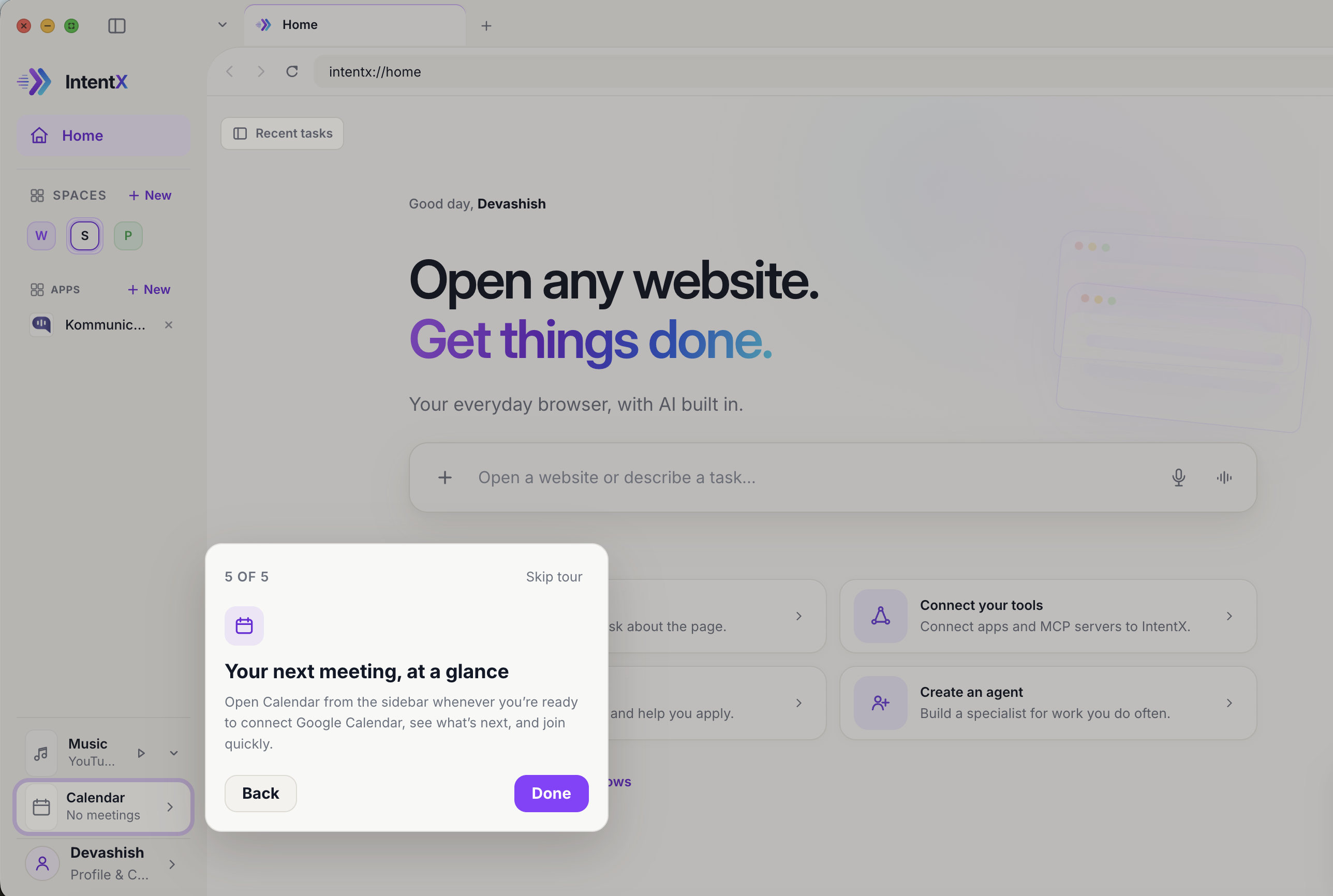
Screen 7: “Your next meeting, at a glance.” The final step highlights Calendar. It explains that users can connect Google Calendar, see what is next, and join quickly.
Calendar had also been easy to miss. Highlighting its sidebar entry gives users a place to remember, while the explanation leads with the everyday outcome: making the next meeting easier to find and act on. As with Music and other tools, the wording leaves the connection for whenever the user is ready.
The tour ends with “Done,” bringing the walkthrough to a clear close and returning attention to the browser.
Across these screens, the design follows a consistent rhythm: explain the benefit, show where it lives, and let the user choose when to take the next step. The setup screens provide orientation; the tour places guidance directly beside the relevant controls. Short explanations, visible progress, and the option to skip help people move at their own pace.
There is more to discover in IntentX, including agents and repeat tasks. The first session gives users a foundation for that discovery: familiar browsing, a way to organize their work, and an introduction to help when they need it.
We’re continuing to refine this experience, and we’d love to hear how it feels to you. Which screen helped you get started? What felt unclear, unnecessary, or missing? Share your feedback with us at support@intentx.run.